Build a shipping decision
Create a policy that charges 9 below a subtotal of 100 and offers free shipping at 100 or above. Both rules return the shipping method Standard.
You need an accessible workspace, permission to edit assets, and permission to release/activate and create an API key for the final integration steps. Ask your workspace administrator if these actions are unavailable.
1. Start a change set
Open Change Sets, create a change set named Shipping quickstart, and select it in the workspace header. Main is read-only. In Catalog, choose New Asset → Decision Table, then enter Shipping quickstart.
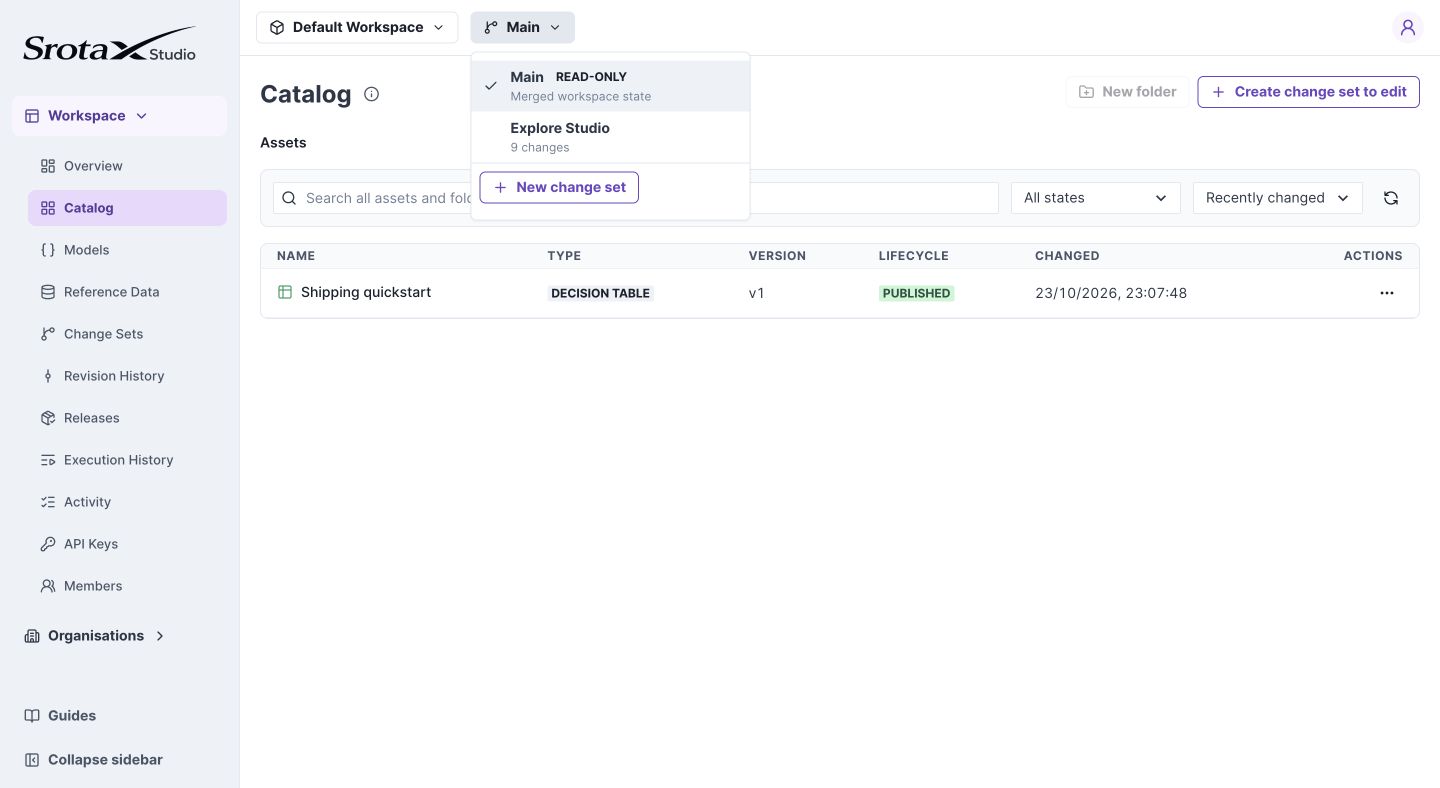
Choose an editable change set before creating the table. Select any screenshot to open it at full size.
2. Define the contract
Open Data Contract. Under Inputs, expand input and add:
| Name | Type | Required | Example |
|---|---|---|---|
| subtotal | Number | Yes | 75 |
Under Outputs, add:
| Name | Type | Required | Example |
|---|---|---|---|
| fee | Number | Yes | 9 |
| method | String | Yes | Standard |
The payload is {"subtotal":75}, not {"input":{"subtotal":75}}. The input. prefix identifies a field inside Studio; it is not an extra envelope your caller supplies.
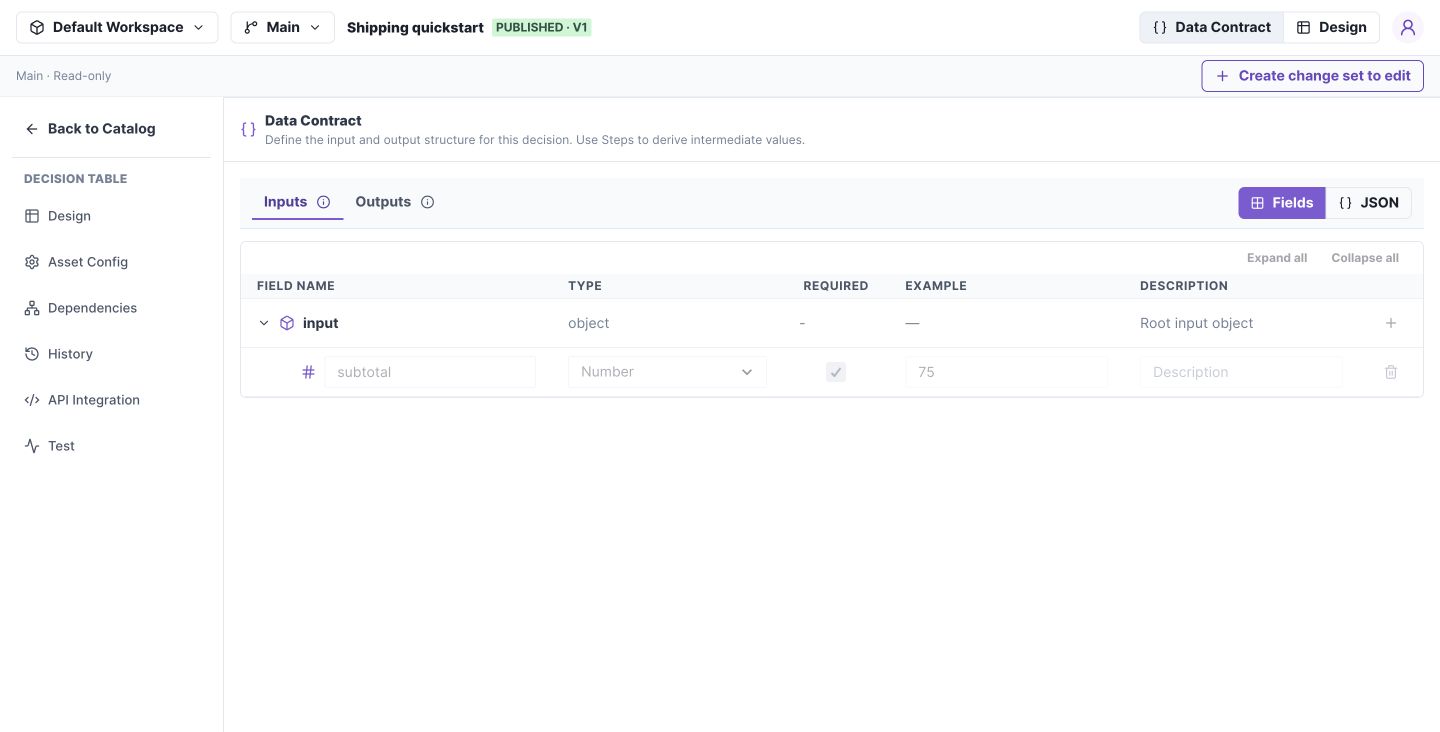
3. Define two rules
Open Design. Add a condition column for input.subtotal and result columns for output.fee and output.method. Enter the rows in this order:
| Row | Order subtotal | Shipping fee | Shipping method |
|---|---|---|---|
| 1 | Greater than or equal to ($gte) 100 |
Fixed value 0 | Fixed value Standard |
| 2 | Less than ($lt) 100 |
Fixed value 9 | Fixed value Standard |
The table returns the first matching row. These conditions do not overlap and cover numeric subtotals. This example does not reject negative amounts; add an explicit business rule if that is required.
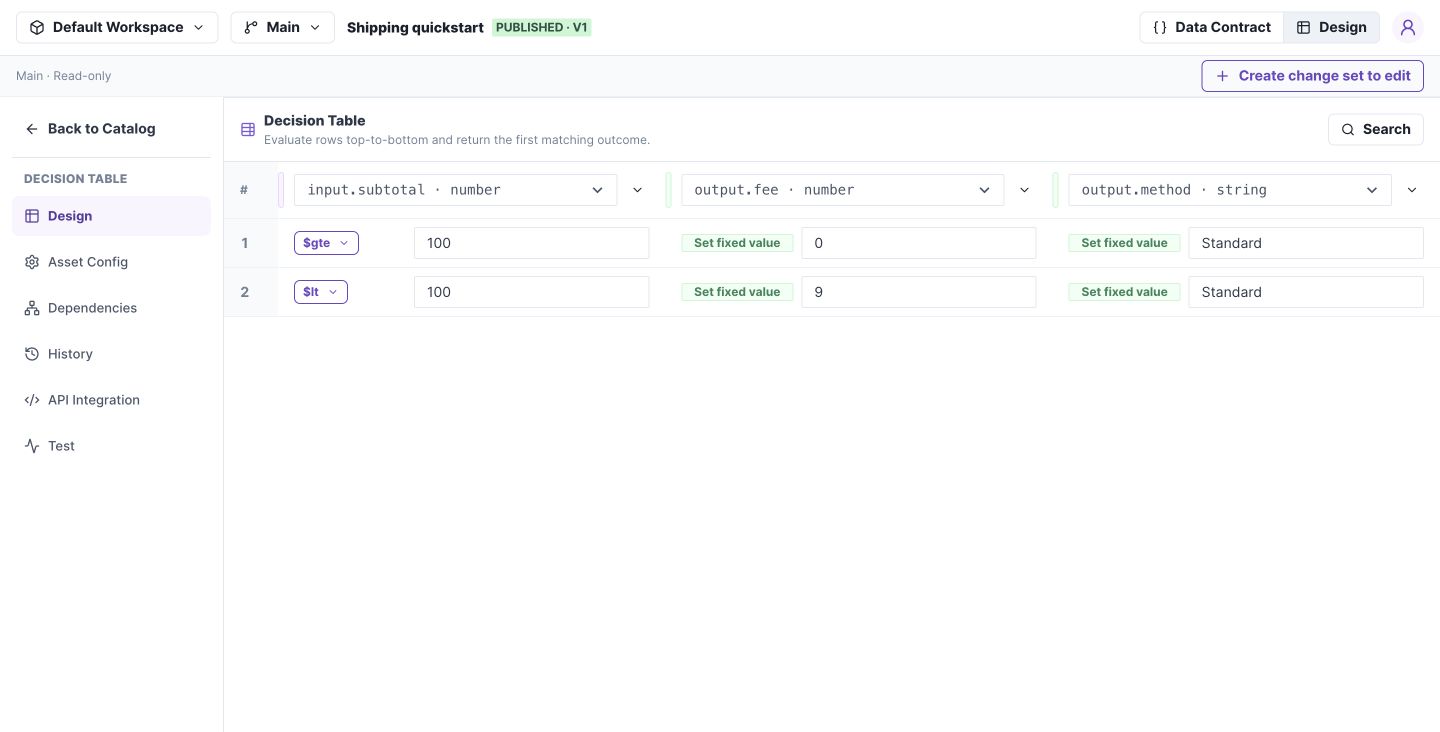
4. Test boundary values
Open Test Panel → Test Input, enter the JSON below, and choose Run Test:
{"subtotal":75}
Result should contain:
{"fee":9,"method":"Standard"}
Trace identifies row 2 as matched. Also test 0, 99.99, 100, and 150. Subtotals 0, 75, and 99.99 charge 9; 100 and 150 charge 0. Test {"subtotal":"wrong"} and confirm a validation failure. On a change set, testing includes unsaved editor changes.
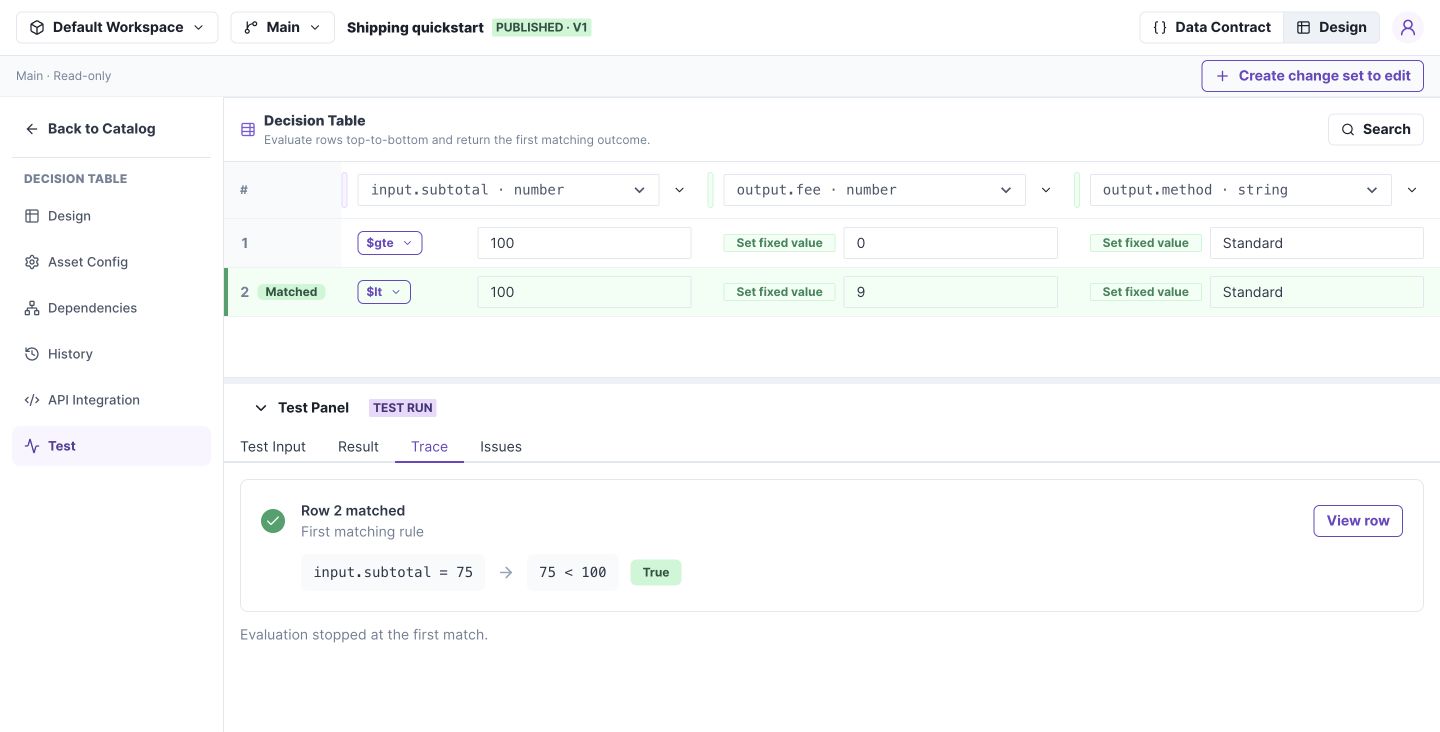
5. Save and merge
Choose Save Draft, then Validate. Open the change set's comparison, check that only your intended rules and contract changed, and merge into Main. Resolve any content conflicts before merging. The asset now has an immutable published version; this is not yet a deployment.
6. Create and activate a release
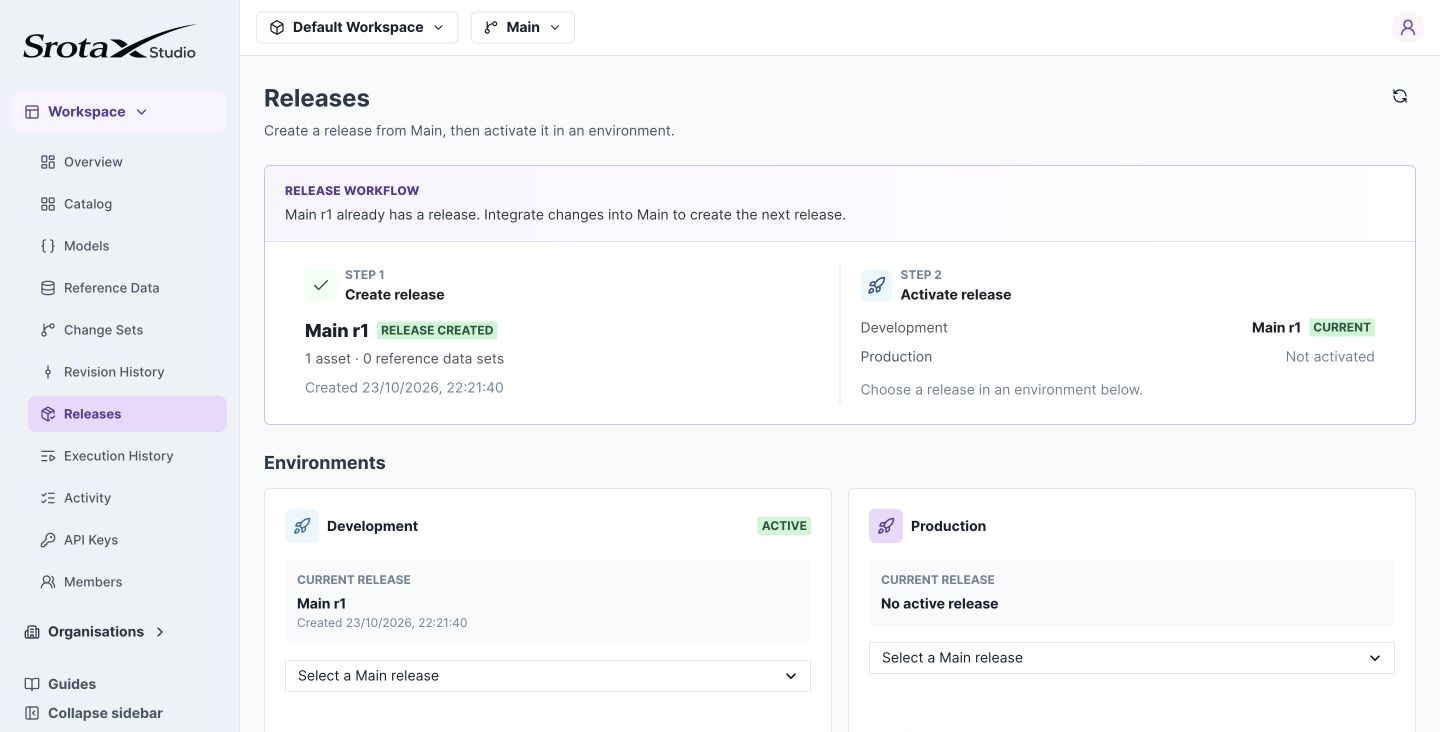
Open Releases on Main and create a release from its current revision. A release includes the whole workspace Main snapshot, not just this table. For your first walkthrough, use a dedicated workspace or review everything included.
Activate the release in Development. Activation selects the complete release for that environment. It does not change Production.
7. Call it from Java
Create a Development API key, copy the asset ID from the asset's API integration information, and run the Java example. Keep the key server-side. The runtime returns an envelope; check success before reading data.
Reproducible example
The repository includes examples/shipping/authoring.json and five cases in examples/shipping/cases.json. The automated walkthrough uses real management and runtime HTTP APIs against a disposable database; verification records its scope.
Download the authoring JSON and test cases. The authoring file is for API/fixture use; it is not a claim that Studio has a whole-asset JSON import button.