Write and test a Decision Table
Build two ordered rules: free shipping for subtotals of 100 or more, and a fee of 9 otherwise.
Before you begin: create a Decision Table in a change set and define its contract: input subtotal (Number); outputs fee (Number) and method (String).
1. Configure columns and rows
- Open Design.
- Add a condition column for
input.subtotaland result columns foroutput.feeandoutput.method. - Add the two rows below, using fixed values for the result cells.
| Row | subtotal condition | fee | method |
|---|---|---|---|
| 1 | Greater than or equal to 100 | 0 | Standard |
| 2 | Less than 100 | 9 | Standard |
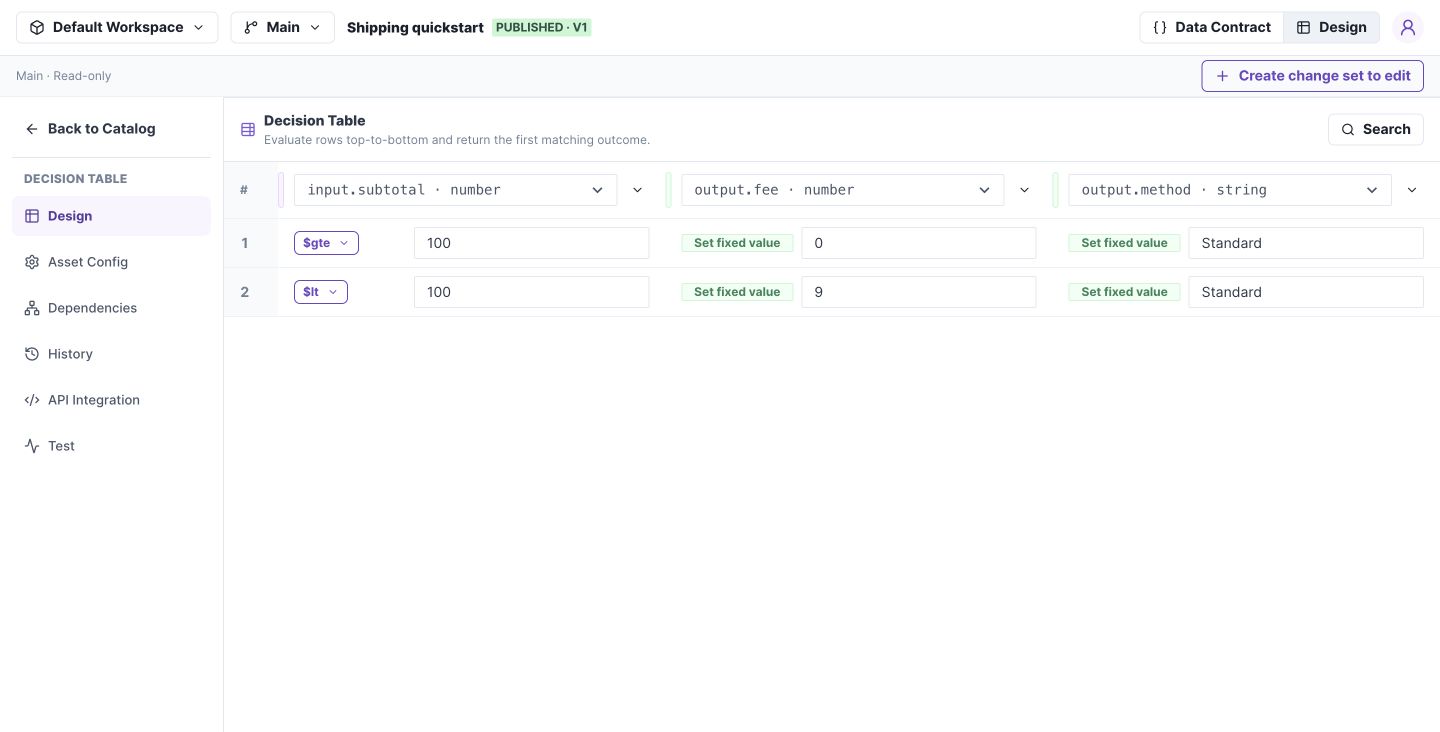
Each row combines a condition with the output values returned when it matches. Select the image to open it at full size.
2. Run a test
Open Test → Test Input, enter {"subtotal":75}, and select Run test. In Result, expect {"fee":9,"method":"Standard"}. Open Trace to identify the matched row.
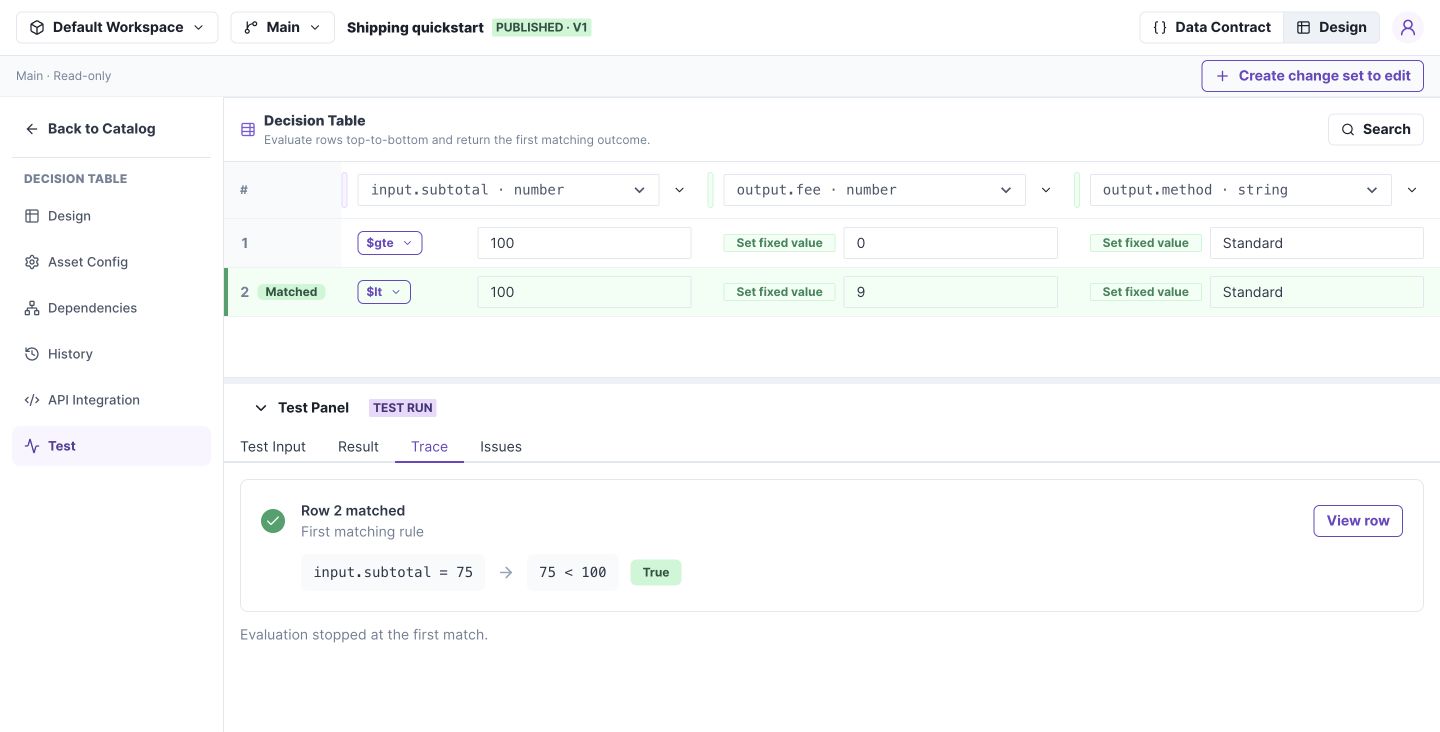
Trace links the returned result to the rule that supplied it. Select the image to open it at full size.
3. Check the boundary and save
Test 100: row 1 should match and return fee 0. Test 99.99: row 2 should return fee 9. Choose Save Draft, then Validate.
If the wrong row wins: inspect row order first. The first match stops evaluation. A rule for < 50 below < 100 will never win for 25.
Continue with reviewing and merging your change set.
Table behavior
Rows run top-to-bottom and the first match supplies the result. Put specific rules before broad rules, or make their conditions disjoint.
Result values must match their output types. Do not rely on strings being silently converted into numbers at runtime.
On Main, adding rows and columns is disabled, but search remains available. In a change set, Run test includes unsaved editor changes; Save Draft is still needed to persist them.