Expressions
Visual expressions choose a supported function and supply its arguments. Advanced JSON expressions use the engine's expression syntax. The modes contain separate expressions: select the one you intend to use. They are not automatically synchronized.
Read an expression
This example uses Add ($add) with two numeric Fixed value arguments: 75 and 9. The result is 84, assigned to output.total by the Set Fields step.
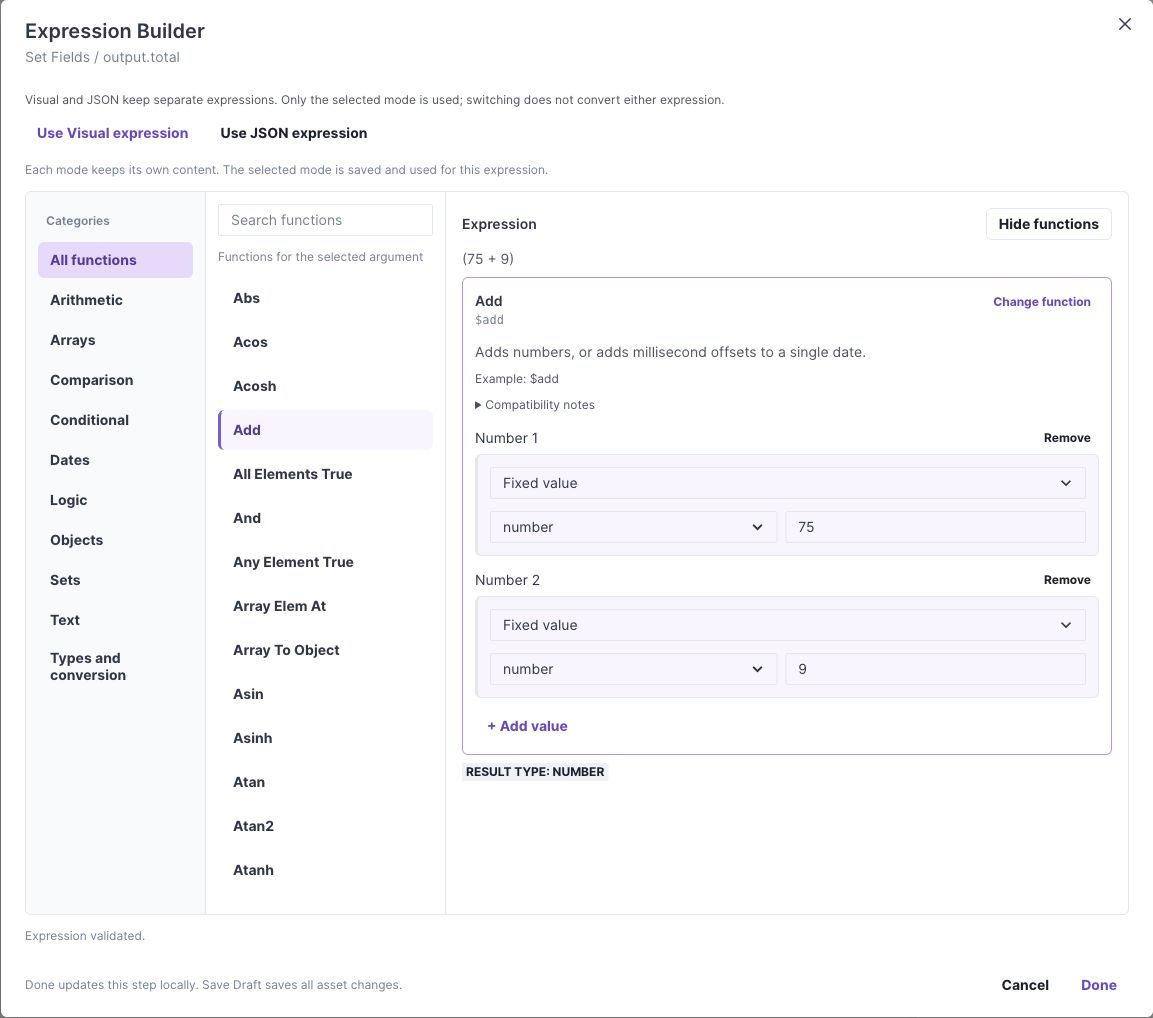
Edit mode with the function catalog expanded. Browse categories on the left, scroll or search the function list, and configure arguments on the right. Select Choose function to reopen the catalog after choosing a function.
To configure this example in a Flow, open Set Fields, select output.total, choose Use expression, and open Edit expression. In Visual mode, select Add, then provide the two number arguments. Select Done to update the step and Save Draft to save the asset. Run a test and check that output.total is 84.
Field scope and testing
input.*, local.*, output.*, and the current list item have different scopes. Select fields from the picker where possible. A reference that exists in another step or another asset is not automatically available at the current location.
The operator inventory separates registered engine operators from functions offered to the Visual editor. Scoped operators such as $map, $filter, and $reduce require scope-aware configuration and are not generic Visual function entries.
Condition pickers also contain business-facing recipes built from one or more operators. A recipe name does not necessarily identify a MongoDB operator. Use condition reference to inspect their metadata.
For each expression, test its normal value, null/missing inputs, wrong types, and boundary values relevant to your contract. Structural validation cannot establish that the formula is your intended business rule.