Organize assets in folders
Create Orders / Shipping, then keep shipping rules together without changing their IDs.
Before you begin: select an editable change set. Folder edits remain there until merge.
1. Create a location
- Open Catalog from the workspace sidebar.
- At Assets, select New folder, enter
Orders, and create it. - Open Orders, then create a folder named
Shipping. - Open Shipping. The breadcrumb should read Assets / Orders / Shipping.
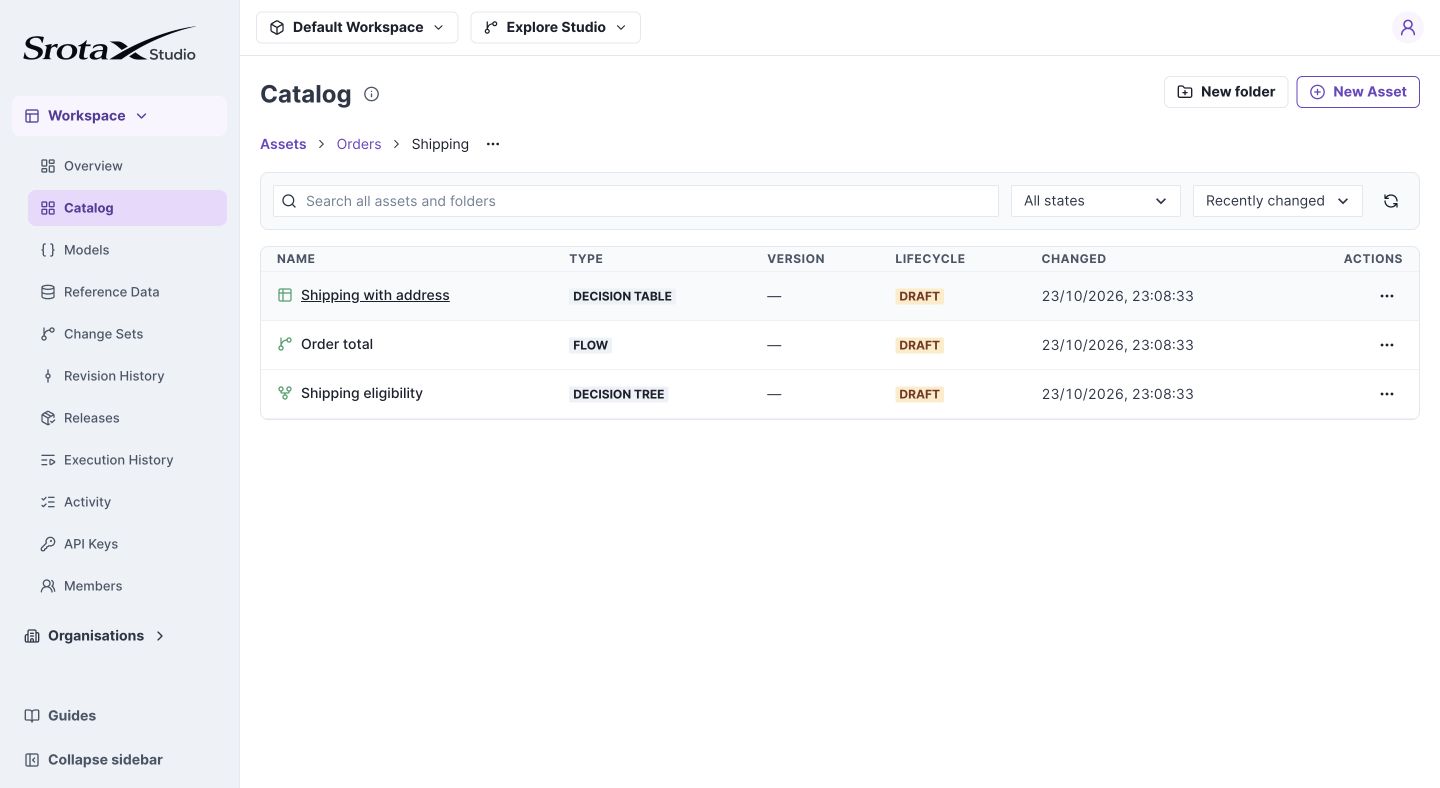
Breadcrumbs show your current location. Select a parent to move back up. Select the image to open it at full size.
2. Create or move an asset
Use New Asset while inside Shipping to create an asset there. Choose its type, then enter its name. To relocate an existing asset, open its … menu and choose Move.
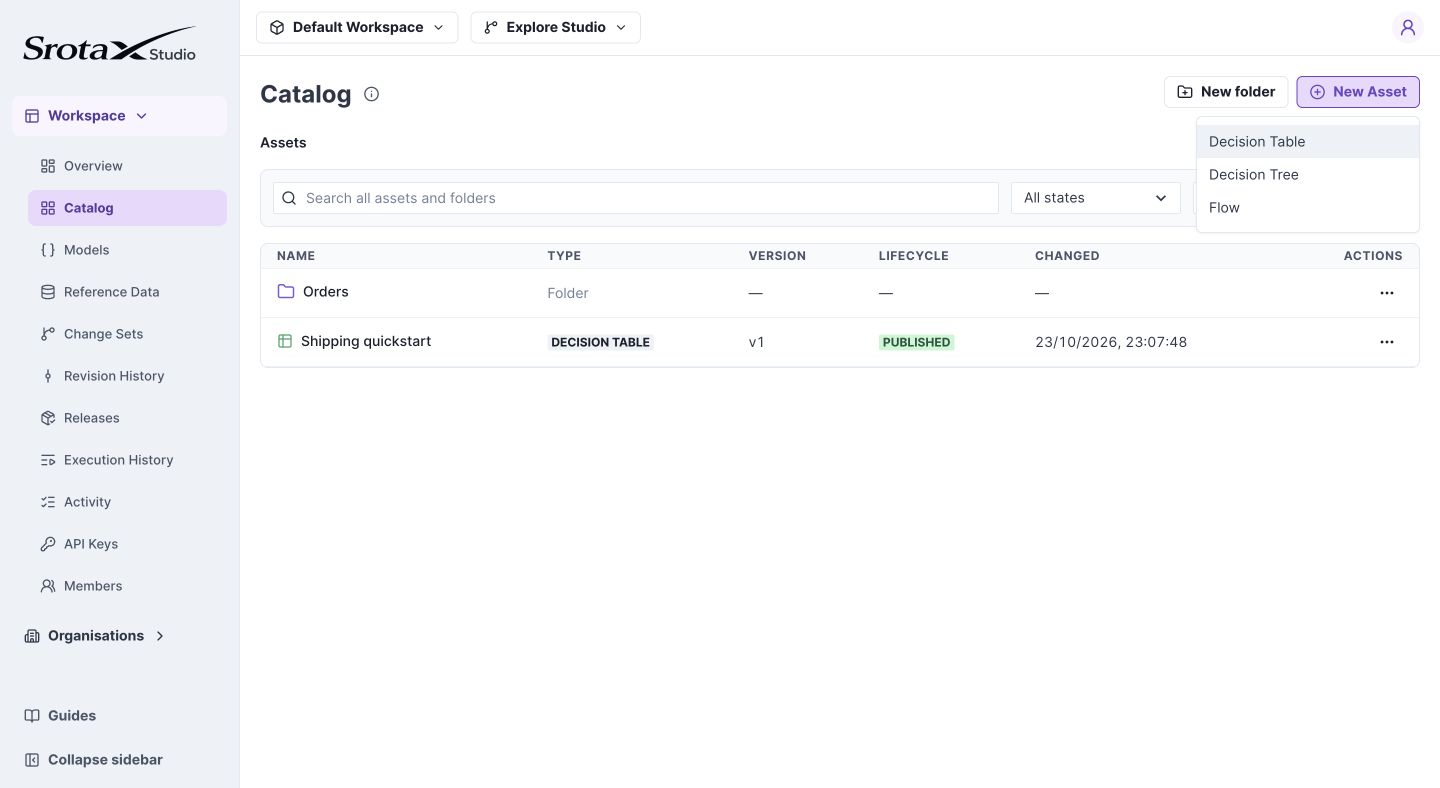
Choose the decision type before entering the asset details. Select the image to open it at full size.
3. Find it again
Use the Catalog search to find assets and folders across the workspace. Inspect the result's location, then open it. Clear the search to resume folder browsing.
Check your work: the asset appears in Shipping and still opens normally. Moving it does not change references to its ID.
If Delete folder is unavailable
The folder must be empty. Assets in other change sets can still prevent deletion even when the current view appears empty.
Folder behavior
Nested folders are supported; Assets is the root. Organize by purpose, for example Orders / Shipping and Orders / Fulfillment.
A change set stores touched folder overrides. Untouched folders follow later changes merged into Main; your unmerged folder edits remain private to your set. A folder-only merge changes organization without creating new executable asset versions.